Run a group seminar
Access: active standard staff account assigned as a classroom supervisor, or application administrator. Start at Supervision > your classroom > Group seminar. Content-editing permission alone is not sufficient.
Before the session
Agree with the course administrator on the classroom, published revision, and Seminar step. A draft is not a runnable seminar. Ask for the published teaching plan, student access window, and the activities immediately before and after the seminar.
For example, a course might run preparation class > individual case > group seminar > test > feedback survey. You lead the discussion, but each student completes the individual steps on their own account. Opening the seminar does not skip unfinished preparation.
- Check your classroom assignment and preview the preceding material.
- Ask students to sign in, open My cases, select the classroom's learning sequence, and finish all preceding activities. A case must be explicitly completed; a survey, test, or learning class must be finally submitted.
- Check that their access/schedule remains valid for the whole session, including the post-seminar activity. A public/default classroom does not override account expiry or a consent gate.
- Prepare a separate display-only projection. Never project your staff workspace or a student's individual case.
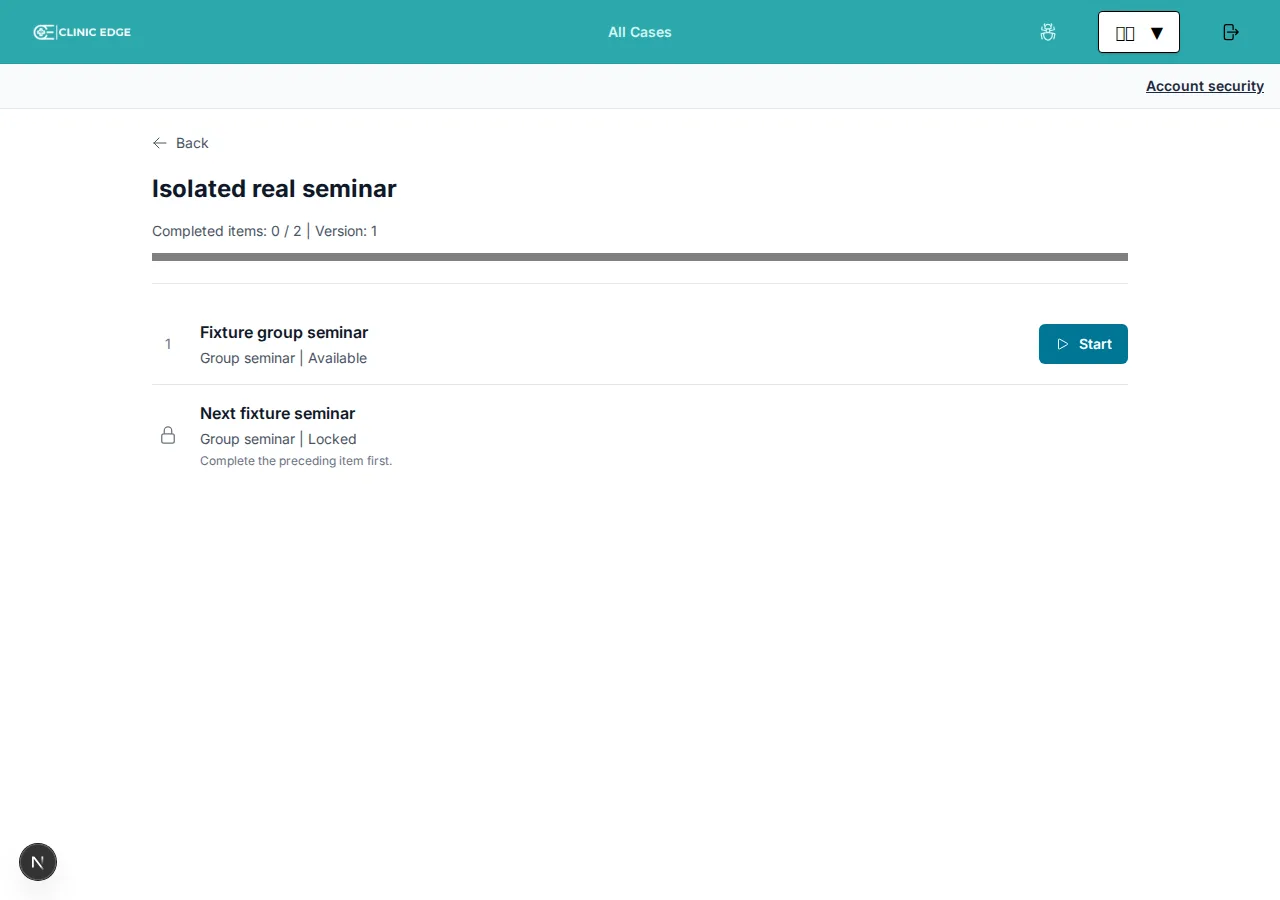
The fixture uses two seminar steps to demonstrate sequencing. Real courses can mix cases, learning classes, surveys, tests, and seminars.
1. Open the correct run
- In Group seminar, select Published revision and Seminar step. Students who already started the course remain on their pinned revision; do not assume everyone is on the newest one.
- Select Live. The workspace initially opens on Records, which lists Seminars I supervised; an empty history is not an unpublished course.
- Set Soft limit (minutes) if needed, or leave it at the published default. The permitted range is 1-1440 minutes.
- Choose Open seminar. The signed-in opener is recorded as lead supervisor; other assigned supervisors can also operate the run.
- Ask students to open the available step and choose Start case on its waiting screen. If the run is already open, starting the step may join directly.
Only one run can be open for the same revision and seminar step. If one is already open, use that run rather than opening a second session.
Before opening, students see the waiting screen below. Waiting alone does not enroll them or record attendance. Joining creates a sequence attempt linked to the shared run, not an individual patient.
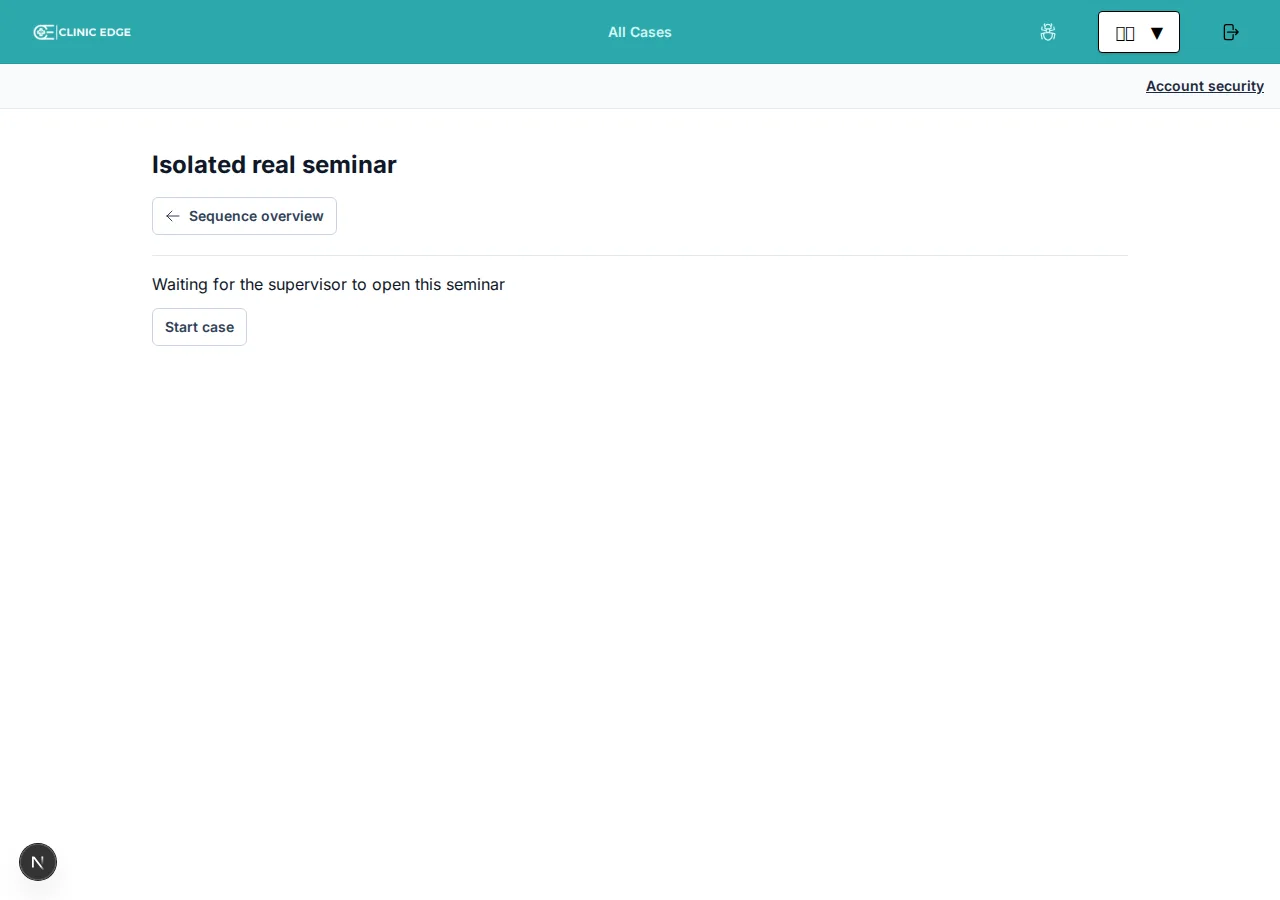
Confirm students have actually joined before proceeding. They should see the vignette and released-content navigation, not just the sequence overview or waiting screen. The shared timer is shown in the staff workspace and teaching display, not in the student's browsing view.
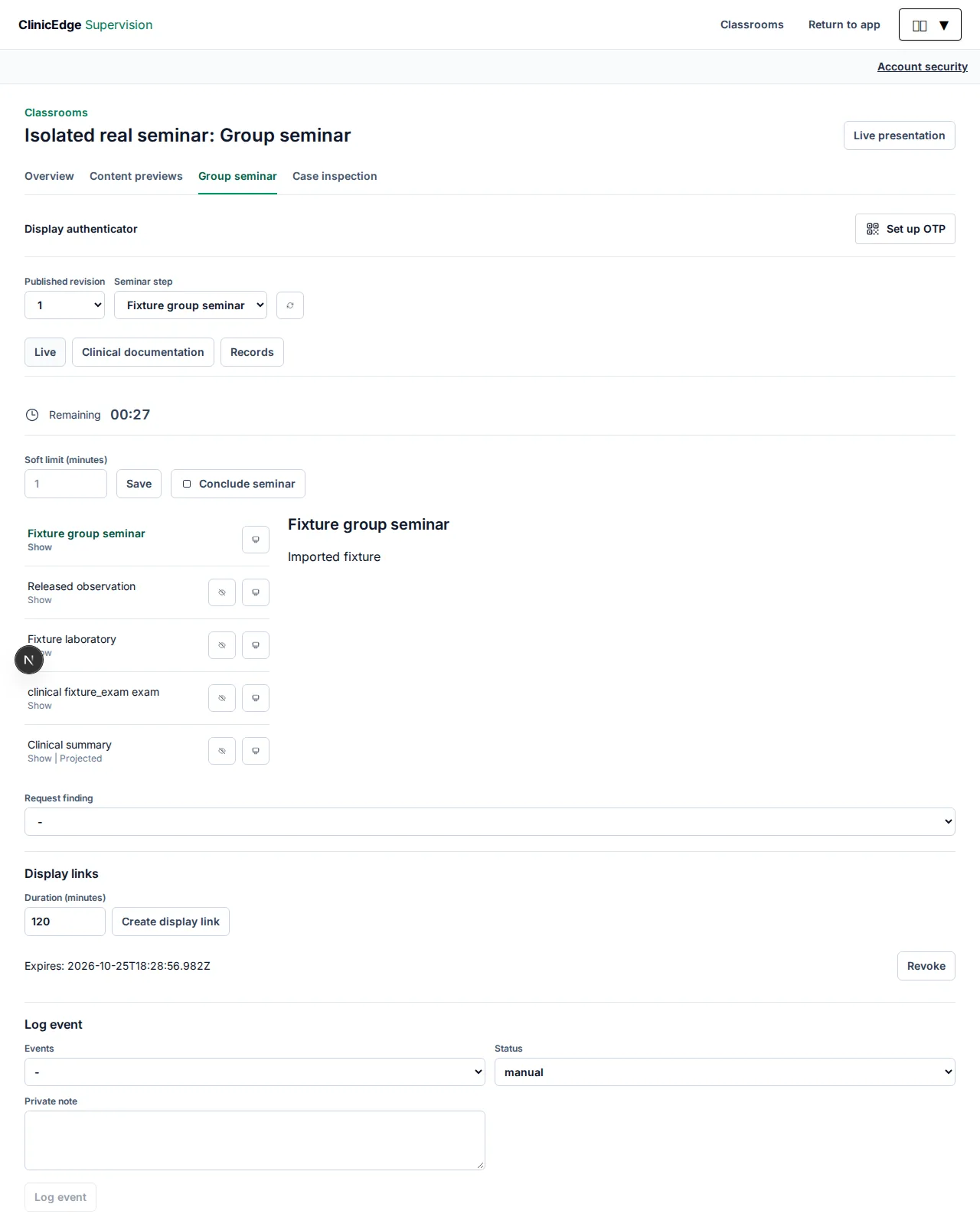
Real application with synthetic fixture content. The Live tab contains the teaching controls.
2. Lead the discussion and release information
Use the vignette to establish the shared scenario, ask the group to propose the next clinical step, and release only the information needed for that discussion.
| Control in Live | Effect |
|---|---|
| Click an item title | Preview it in your staff workspace only |
| Show / Hide (eye icons) | Make that item available/unavailable to joined students |
| Project (screen icon) | Put an already released item on the display-only screen |
| Request finding | Generate and immediately share a finding/result from the imported case |
The vignette is initially available and cannot be hidden. Custom teaching items start hidden. Show does not automatically project an item, and Project does not move every student's browser: students browse released items independently. Hiding the projected item restores the vignette on the display; learners viewing a hidden item also return to the vignette.
For clinical requests, select the finding, enter the offered request parameters, and submit. Results are stored once for the run and shared consistently, rather than generating a different patient for each student. Review what you are about to request: these results are released immediately.
Laboratory orders accumulate in one table per source. New orders append only unmeasured tests; overlapping panels do not reroll existing values. An order containing only previously measured tests creates no new results and does not re-show a hidden table.
3. Document decisions and share the agreed summary
- Open Clinical documentation.
- Under Diagnosis, search the ICD catalog, choose an entry, record any Supervisor judgment and Private rationale, and Save.
- Under Medication, search for a product or choose Custom medication; enter the name, PPN where applicable, and Regimen, then Save.
- Select Include in summary for the entries the group should see, across the diagnosis and medication tabs.
- Choose Update and share summary. Return to Live and Project the Shared clinical summary if it should appear on the teaching display.
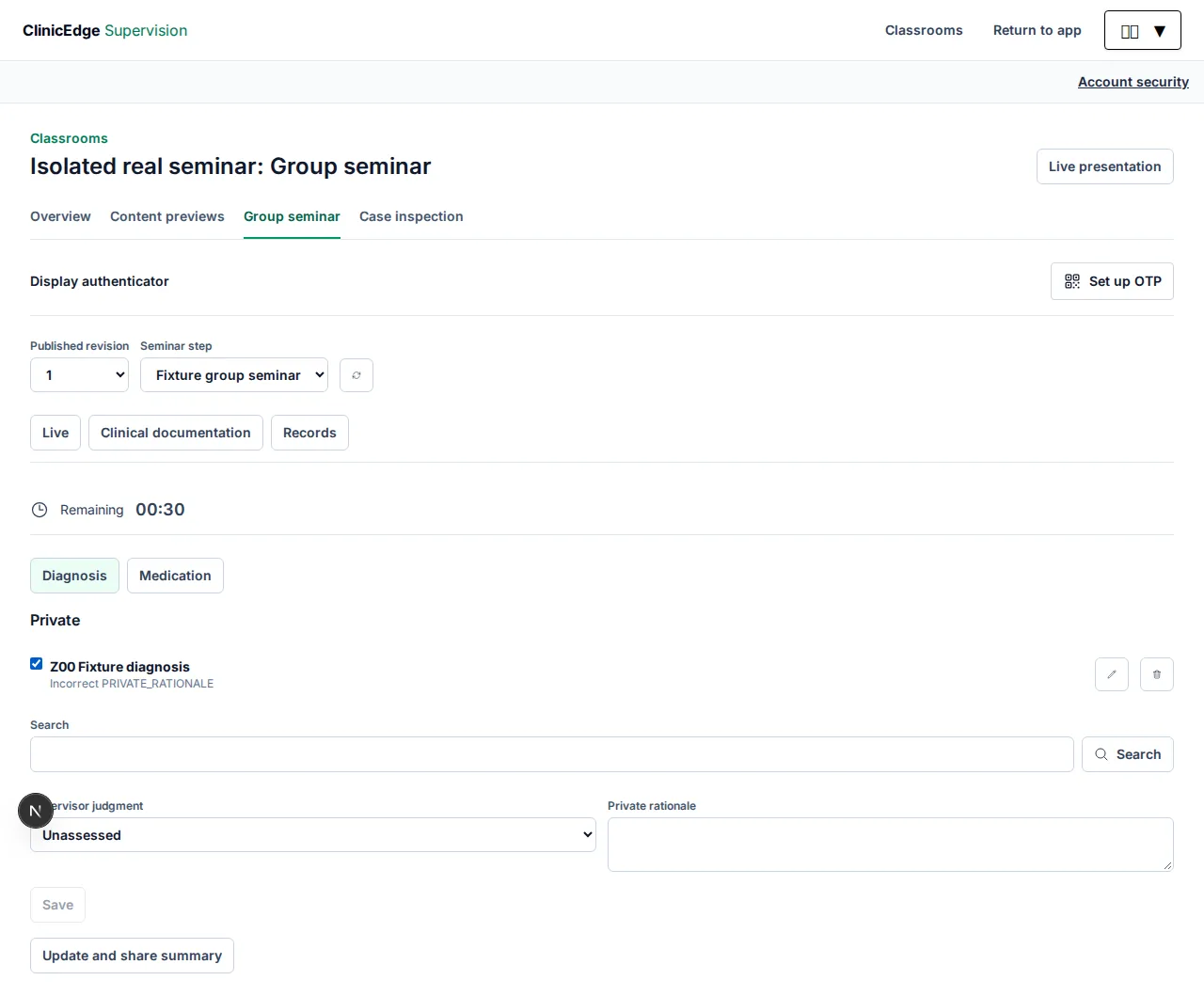
A deliberately fictional private rationale demonstrates the boundary between staff notes and shared content.
Saved clinical entries are private by default. Sharing creates a separate safe snapshot; judgments and rationale are excluded. Later private edits do not silently change the shared summary: review the selections and share again.
In Live > Log event, choose a configured event type and record teaching observations. Diagnosis events require an explicit human judgment/confirmation; they are not automatic grading. Events record the acting supervisor, server time, and elapsed time. Private event notes are not projected or released to students.
4. Manage time without locking the group
The timer is a soft, continuous wall-clock teaching aid, not a student's active/idle case timer. With no limit it shows elapsed time; with a limit it shows remaining time and then overtime.
To change or remove a limit during the run, edit Soft limit (minutes) and choose Save; saving an empty field removes it. This does not reset the original start time. Zero never locks, concludes, or automatically advances the seminar. If a disconnected/last-known-state warning appears, use Refresh and confirm the current state before further actions.
Teaching controls on a mobile screen

5. Conclude and move to the next activity
- Confirm that the intended students have joined and the final shared material is correct.
- In Live, choose Conclude seminar and confirm Conclude this seminar for every joined learner?
- Tell students to choose Continue learning sequence, then start the next available step. A following seminar still needs its own open run.
- Revoke display links when no longer needed.
Conclusion completes all joined attempts together, freezes the timer and released archive, and unlocks the next activity. A student closing a browser does not conclude the run. Students can reopen Seminar archive for their own run while their access permits.
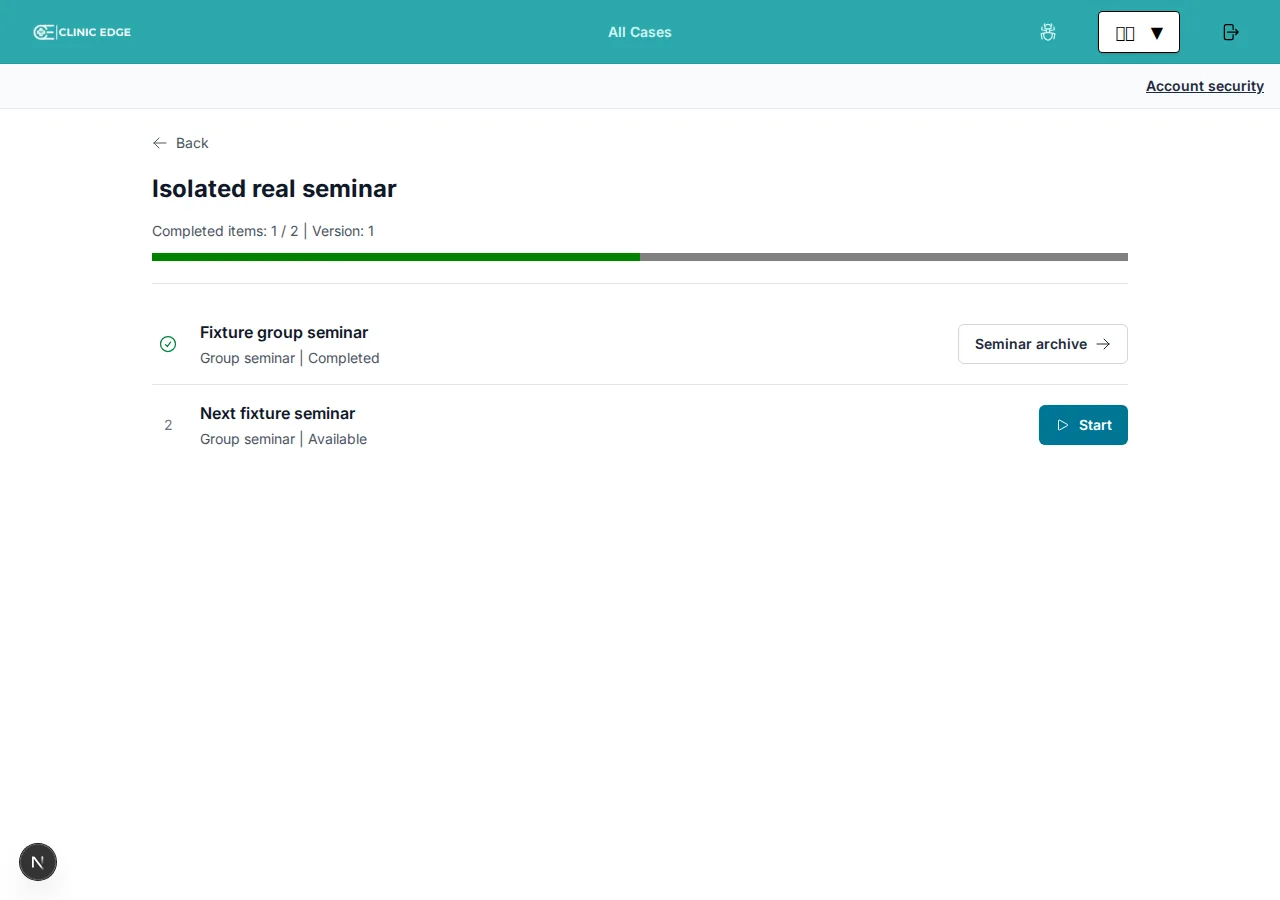
Students who never joined cannot normally join a closed run. Opening another run is not a retake/reset: it starts fresh shared content but does not reset completed learner attempts.
6. Check attendance and correct a missed join
Choose Records > Seminars I supervised. This history lists runs you opened, concluded, or otherwise acted in, with start/conclusion times and participant counts. Select Attendance beside the relevant run.
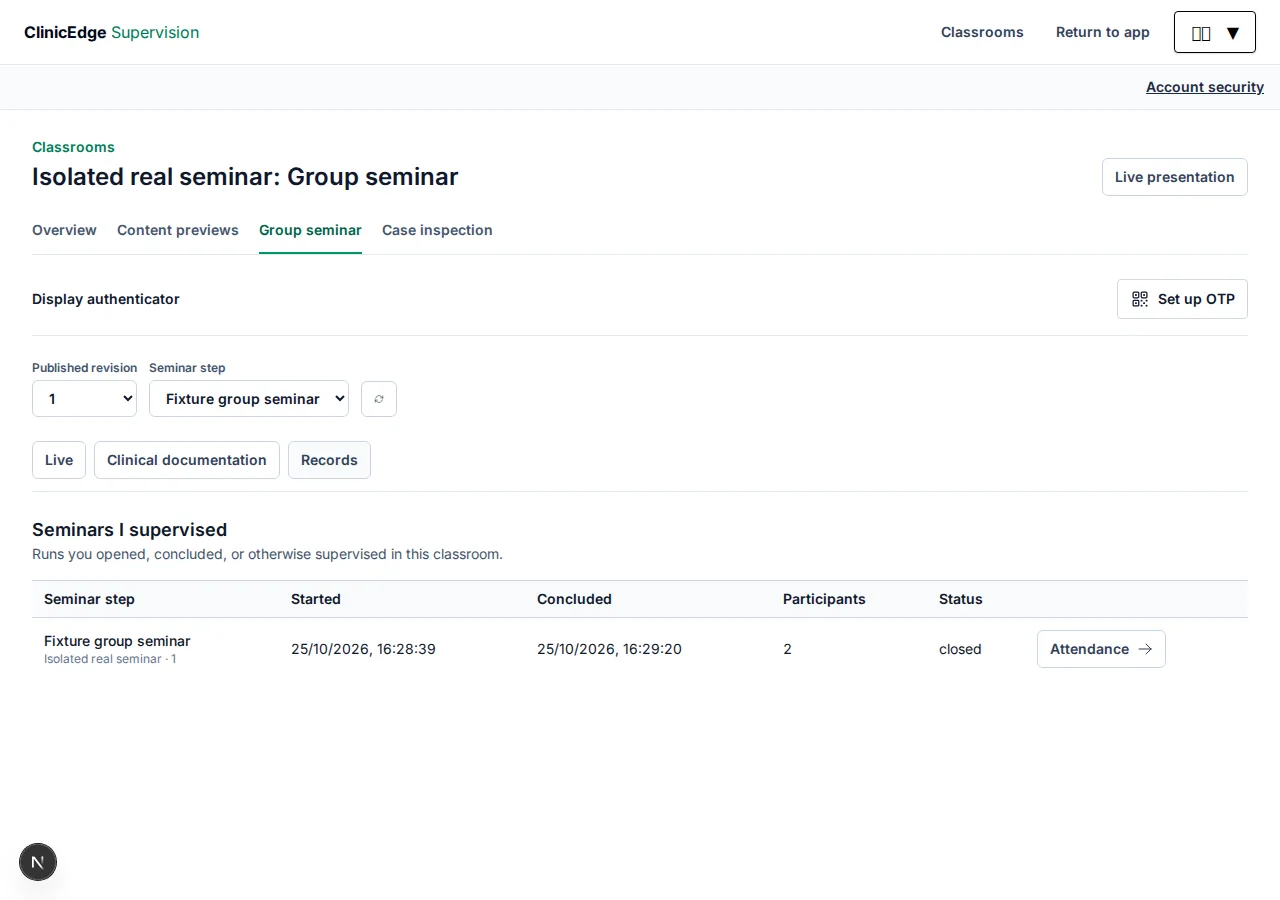
For a student who genuinely attended but missed joining:
- Open the concluded run's Attendance.
- In Add student to attendance, enter the student's username or the ID used at sign-in. The placeholder says Username or ID/PIN, but do not enter or request the secret PIN.
- Choose Add attendance and check the explicit confirmation or error.
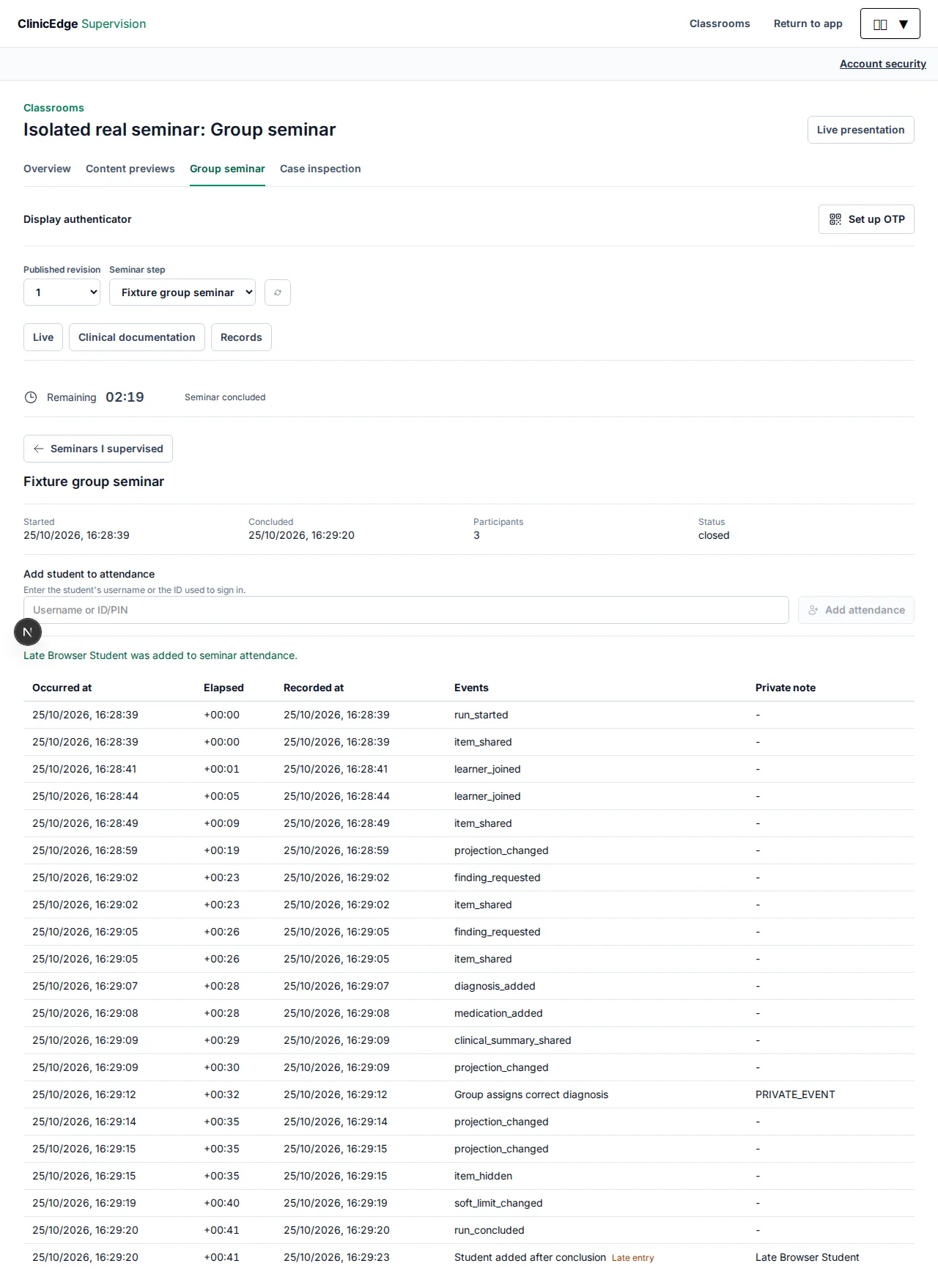
The server checks account/classroom access, pinned revision, and completion of preceding activities. A valid addition records late attendance and a completed sequence attempt without reopening the run or rewriting earlier attempts. Adding the same matching student again reports that attendance already exists rather than duplicating it.
Late event entries and append-only corrections are separate from attendance correction. They preserve the original event/conclusion and cannot change the frozen learner archive. CSV/JSON event exports are private institutional records; a single export is limited to 10,000 events. Use paginated records for larger timelines.
If the group cannot continue
| Symptom | Check before changing anything |
|---|---|
| Classroom missing for staff | Standard staff account and explicit supervisor assignment; editing rights are separate |
| No seminar step available to staff | Classroom saved in sequence mode, published revision, correct seminar step, and Live tab |
| Student sees a locked step | Preceding case completion or final questionnaire/class submission |
| Student keeps waiting | Correct classroom/revision/step, open run, then Start case; refresh if necessary |
| Some students see different content | Their pinned revisions and joined runs; a new publication does not migrate existing progress |
| Next step remains locked | Run actually concluded, student actually joined, and current account/access window |
| Late attendance rejected | Correct sign-in identifier, valid access, matching revision, and preceding progress; do not edit stored attempts to bypass the check |
| Display is blank or unavailable | Separate grant expiry/revocation and display-hub unlock; see projection troubleshooting |
Exports and individual records must not be placed on a public display or in the documentation repository.