Prepare a group seminar
Access: classrooms management permission, or application administrator. Open Moderation > Classrooms, save the classroom in Sequence mode, then use its Sequence tab. Viewing permission is read-only; it does not allow preparing or publishing a seminar.
Place the seminar in the learning sequence
Design the full teaching path, not just the shared discussion. For example:
| Step | Learner action | Staff responsibility |
|---|---|---|
| Preparation learning class | Work through material and finally submit | Provide clear preparation instructions |
| Individual case | Complete the case explicitly | Preview the case and plan the discussion |
| Group seminar | Start/join the shared run | Open, release findings, document, and conclude |
| Test | Finally submit answers | Review aggregate results with the appropriate permission |
| Feedback survey | Finally submit | Explain the feedback purpose and privacy |
All preceding steps must be complete before a learner can join the seminar. If the seminar is the first shared event, do not put mandatory preparation before it unless students can complete that preparation in time. The same seminar at two positions is two distinct occurrences.
See sequence publication and pinned revisions before distributing access.
Configure the teaching scenario
- In the activity-type selector, choose Group seminar, optionally select a case, and choose Add (plus icon). No case is required for a text/image-only seminar.
- Set the occurrence Title students should see. Under Vignette, write the initial title and Markdown text and add any starting images.
- Use Custom items to add additional title/text/image items. Order them for the teaching plan; staff release them individually during the discussion, not automatically in that order.
- Select Optional case import when you want a source case for generated clinical findings. An empty vignette can fall back to the imported case's vignette; supplied vignette text is used for the seminar. Case-backed text is resolved when the run opens, so check the generated scenario as well as the draft.
- Select applicable Events. Use the sequence editor's Event catalog tab to prepare reusable event definitions; return and select the types for this seminar.
- Set Soft limit (minutes) if helpful (1-1440), or leave it empty. This is orientation time, not an automatic ending or hard learner lock.
- Use Save draft to preserve authoring. Review the sequence preview, then Publish new revision and confirm. Check the published version under Revisions.
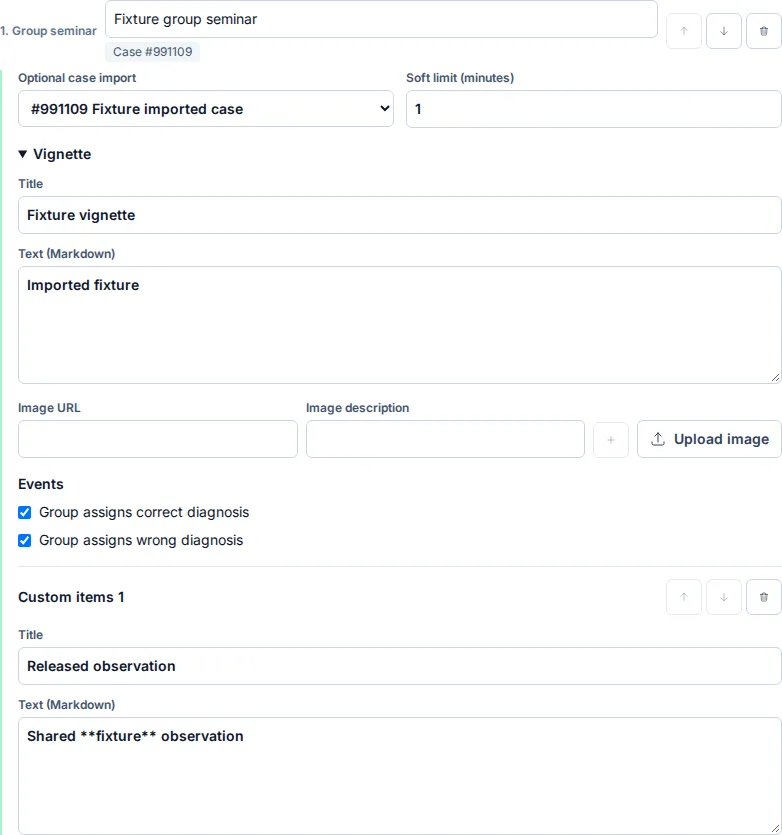
Captured from the current editor using an isolated synthetic classroom; cropped to the scenario and teaching-item controls. The fixture's image controls are below this crop.
Use only approved, de-identified clinical assets. Uploaded images remain private; approved external image sources have their own availability and privacy considerations.
Understand publication
The seminar configuration, imported case, and selected event definitions are snapshotted. Renaming/archiving an event type or editing the source case later does not silently change the published seminar.
The vignette is initially available. Additional items and generated findings become visible under supervisor control. The projected item and what each student is browsing are independent.
Hand off to staff
- In Classroom supervisors, use Search staff, Choose staff, and Add supervisor. Confirm the assignment is saved. Application administrators have access to all classrooms without individual assignments.
- Give staff the classroom name, published revision/version, Seminar step title, intended group/date, preceding and following activities, and planned reveal/request order.
- Provide the step-by-step run guide, including the need to switch from the initial Records tab to Live.
- Confirm learners have classroom access and a valid schedule. Test the whole path with synthetic learner and assigned-staff accounts, not only an administrator account.
- Agree on the projection method, who concludes the run, and who checks attendance.
Content-authoring permission alone is not permission to operate a live run. There can be only one open run per revision/occurrence. Different pinned revisions need separate matching runs; publishing a new version does not move existing students to it.
Joining, not merely viewing the waiting screen, records participation. Staff conclusion completes joined attempts and unlocks the next step. Plan to check joins before conclusion; missed attendance has a checked correction workflow afterward.
Recordkeeping
Seminar events, clinical snapshots, released versions, attendance, and protected images are operational records, not merely reusable catalog content. Agree on export and retention responsibilities with IT. Removing an image reference from a draft does not delete its stored file.