Project teaching content safely
Choose the narrowest display for the teaching task. A staff workspace is not automatically suitable for a classroom projector.
| Surface | Displays | Access |
|---|---|---|
| Individual inspection | One learner's attributed attempt | Authenticated staff; do not project |
| Test presentation | Questions and aggregate final responses | Classroom tool/administrator |
| Counts-only monitor | Restricted aggregate participation/activity | Expiring bearer grant or unlocked hub |
| Seminar content display | Selected released item and shared timer | Expiring bearer grant or unlocked hub |
Seminar links
In Supervision > classroom > Group seminar > Live, open/select the correct run. In Display links, set Duration (minutes), then Create display link. The link uses the current workspace language; open the workspace in the intended language before creating it. Open the resulting Display links action on the teaching display. Use Project beside an already released item to change what it shows.
The link is pinned to that run. Creating it does not release hidden content, join a learner, or grant classroom access. Anyone holding the URL can read the permitted content until it expires or is revoked.
Keep links private, avoid logging/copying them into slides or tickets, and revoke them when no longer needed. The default seminar-link lifetime is 120 minutes; the allowed range is 1-1440. Ending a seminar freezes its display but does not extend expiry or bypass revocation.
There can be at most five active seminar links per issuer. Raw URLs are kept only in the creating browser's session storage, not recoverable from server metadata. If that browser session is gone, create a new link rather than expecting another staff browser to recover it.
The display excludes rosters, supervisor identities, unreleased items, judgments and private clinical notes. Clinical images still need manual de-identification.
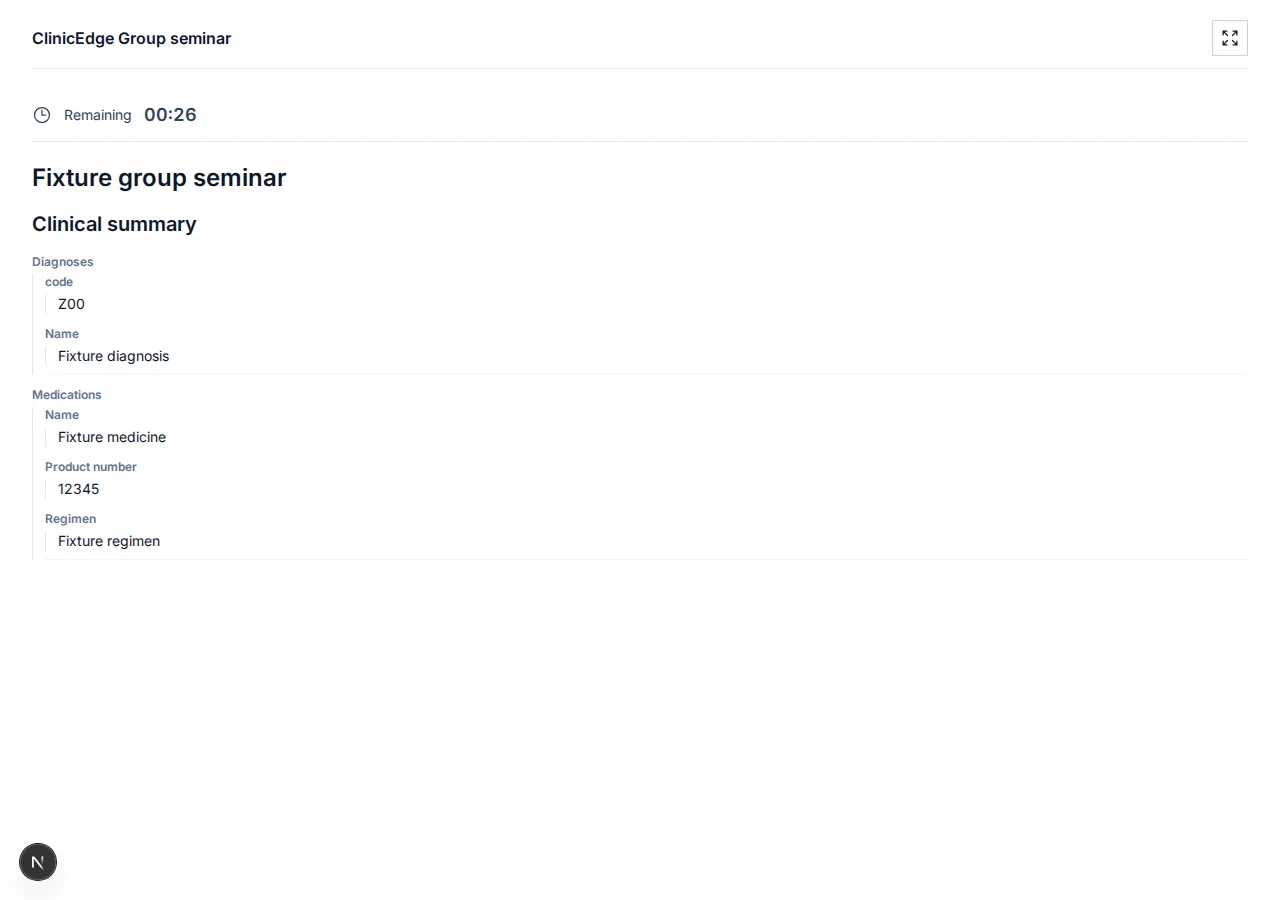
Synthetic display example; this is not the staff's private clinical record.
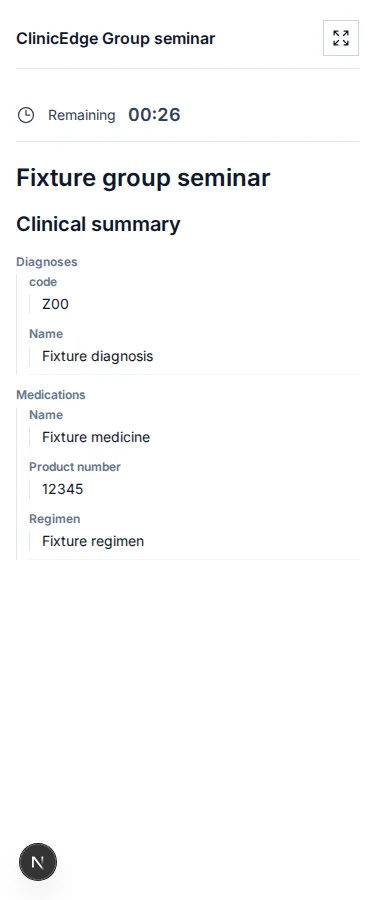
Display on a narrow screen
Counts-only preview links
For aggregate activity rather than seminar content, open the classroom's Live presentation > Preview links:
- Set Link duration (minutes) (default 120, range 1-1440).
- Choose the start-time window, case or revision/activity scope, and display language.
- Choose Create preview link, then Copy link or Open preview.
- Use Edit and Save to change an active link's scope/language/lifetime, or Revoke link when finished.
The start-time window and link lifetime are different controls. Saving an edited active link refreshes expiry from the current time using its duration; expired/revoked links cannot be revived. Only the issuing account with current supervision access can edit or revoke its link.
This monitor deliberately excludes names, rosters, individual responses, clinical text/images, and item-frequency tables. Small counts are suppressed: Not shown is not zero. If the started cohort is below five, no counters are shown; otherwise individual positive counts below five remain hidden.
Link metadata can be listed in another browser, but the raw URL is available only in the browser session that created it. The monitor grants no staff/student session and cannot be used to inspect individual cases.
PIN/OTP display hub
For a shared display device, open /seminar-display on the application's hostname:
- Enter the static display PIN configured by an application administrator in Settings > Seminar display.
- Select the classroom.
- Enter its current six-digit authenticator code.
- Choose an available valid seminar display or counts-only monitor.
An assigned supervisor can choose Set up OTP in the classroom's Display authenticator section (Display-Authenticator in German) and scan the QR in an authenticator app. Setup is automatic on first authorized use; it is not a manual database task.
The classroom authenticator is shared among assigned supervisors and grants display-only access. Treat its QR as a secret. A successfully consumed code cannot unlock two displays simultaneously; wait for the next code on the second device.
Hub sessions last 30 minutes; classroom unlocks last 15 minutes, capped by the session. The administrator changing/disabling the static PIN invalidates hub sessions. Neither the PIN nor the classroom OTP grants staff or student account access.
If nothing is listed
Check the classroom, unlock expiry, underlying display grant, and issuer's current staff access. Ordinary case previews/sandbox patients are not exposed by the hub. A hub login does not manufacture a new display permission.